
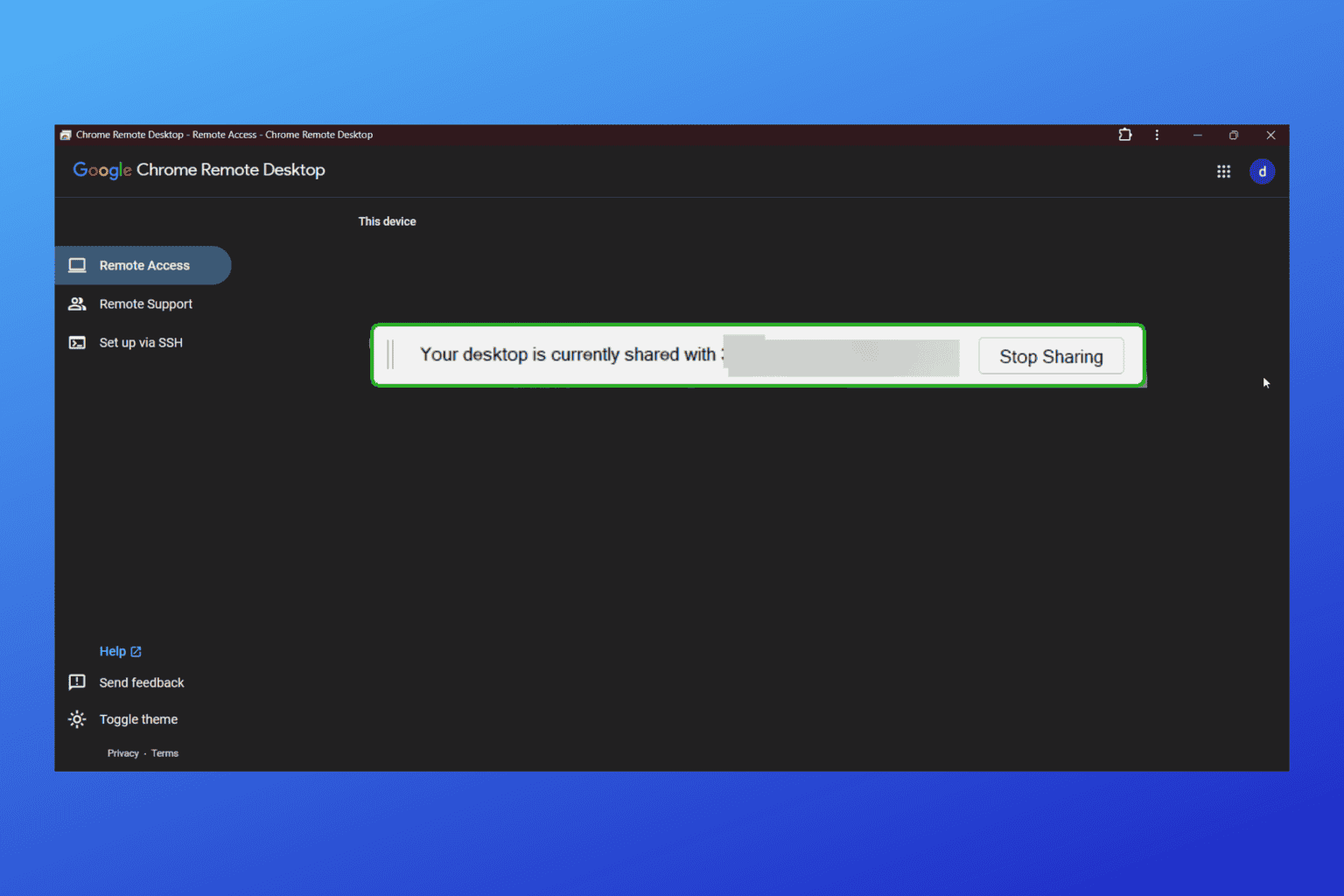
When remotely accessing a computer, a white bar with the text ‘Stop Sharing’ appears at the bottom. It is possible to pull it to the side, but catching it is difficult and it is hard to completely conceal it. Is it possible to currently remove ‘Your desktop is presently shared with xxx’?”
– Question from Reddit

Why “Stop Sharing” notification keeps showing up?
If you’re wondering why the “Stop Sharing” notification keeps popping up, let’s break down the two methods for connecting to a device remotely via Chrome Remote Desktop to clarify.
First, you can access an unattended device using a PIN. This PIN, set by the device’s owner, must be at least six digits long. With the PIN, the local user can connect to the remote device instantly without needing additional approval.
The second method involves using a temporary access code for remote support. The local user inputs a code generated by the remote computer, which is only valid for five minutes and can be used just once. The remote user must approve the connection, and every 30 minutes, they’ll see a notification saying, “Your desktop is currently shared with [name].”
The “Stop Sharing” notification appears for security purposes. When sharing your computer via the temporary code, Chrome Remote Desktop prompts you to reauthorize the connection every 30 minutes to protect your device and its data. If you don’t confirm the connection promptly, Google assumes there might be a security risk and may terminate the session.
To end a sharing session, click “Stop Sharing,” and the connection will be immediately disconnected, rendering the access code invalid. To share your screen again, you’ll need to generate and share a new code.
How to hide “Your desktop is currently shared with xxx”
Here’s the solution to Chrome Remote Desktop hide “Your desktop is currently shared with xxx” message.
Note: Be careful when downloading DLLs from the internet.
Step 1. Copy the following link and open it in your browser, then download the two files from Google Drive.
https://drive.google.com/drive/folders/16IBd7O3G_xJOAWcbEuhzWOMp4gqU1JQ4?usp=drive_link

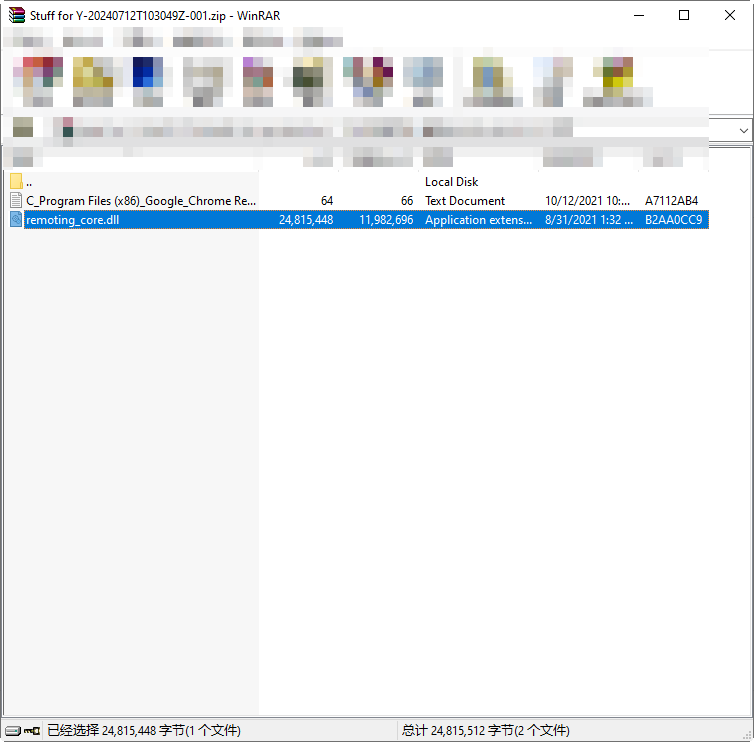
Step 2. Open the two files downloaded, and double-click the first file.

Step 3. Copy the file path in the first file and then open it in your File Explorer.

Step 4. Move the “remoting_core.dll” file to somewhere else, for example, your desktop. Right-click it and choose Properties, then tick Hidden to hide it.

Step 5. Then go to the File Explorer again, click View > Show > uncheck Hidden items.

Step 6. Then move the “remoting_core.dll” you downloaded into the File Explorer.
Step 7. Now you can use Chrome Remote Desktop without the “Your desktop is currently shared with xxx” message.